View and column formatting sample collection
Featured
This thread starts the collaboration with the community to create a collection of sample view and column formattings using the SharePoint out-of-the-box JSON list formatting possibilities.
Comments must contain:
- Download link to exported JSON file(s) - stored in a public storage e.g. github
- Screenshot(s) of list view with applied styles in runtime
Sharing is caring!
-
Column Formatting - Actions column
Download the json file from here: SampleCollection/SP-List-View-and-Column-Formatting-Samples/column-formatting-samples/actions-column at main · skybow/SampleCollection (github.com)
add a new Single line of text column (e.g. called "Actions") to the list, click on the header in the view -> Format this column and switch to the Advanced Mode. Copy the JSON into the textbox and press Save.Result
Action column to view and edit the item on a List View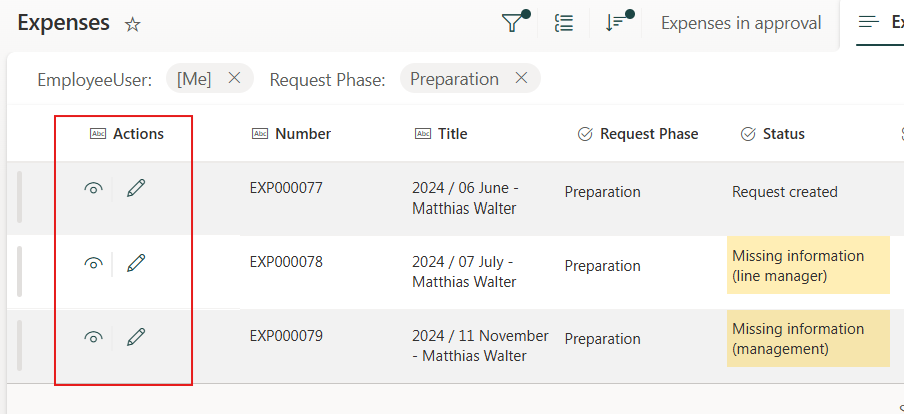 0
0 -
Column Formatting - Document preview column
Download the json file from here: SampleCollection/SP-List-View-and-Column-Formatting-Samples/column-formatting-samples/document-preview-column at main · skybow/SampleCollection (github.com)
add a new Single line of text column (e.g. called "Preview") to the list, click on the header in the view -> Format this column and switch to the Advanced Mode. Copy the JSON into the textbox and press Save.Result
Document preview column with larger dialog on mouse hover 1
1 -

In regards to Column Formatting - Actions column would it be possible to display the edit button on sublists only if the parent form is in edit mode?
0 -

Joerg_K.
Easiest would be to create an additional column with just the "View item" JSON part on it. Create another view including that new column instead of the other Actions column and use this view for the sublist control on the DispForm only (then you still have the original Actions column on New- and EditForm).0 -
Correct, I just wondered if there would have been a smarter way :) thanks a lot!
0 -
View Formatting - Command Bar best practice style
Download the json file from here: SampleCollection/SP-List-View-and-Column-Formatting-Samples/view-commandbar-formatting-samples/commandbar-best-practice-style-hide-order at main · skybow/SampleCollection (github.com)
Select the view you would like to change in the upper right corner on the list -> Format current view and switch to the Advanced Mode. Copy the JSON into the textbox and press Save.
Result
A clean command bar, with just the new button and the alerts in the overflow section. The additional buttons you see in the screenshot below (Home icon and Views) are added as skybow List actions.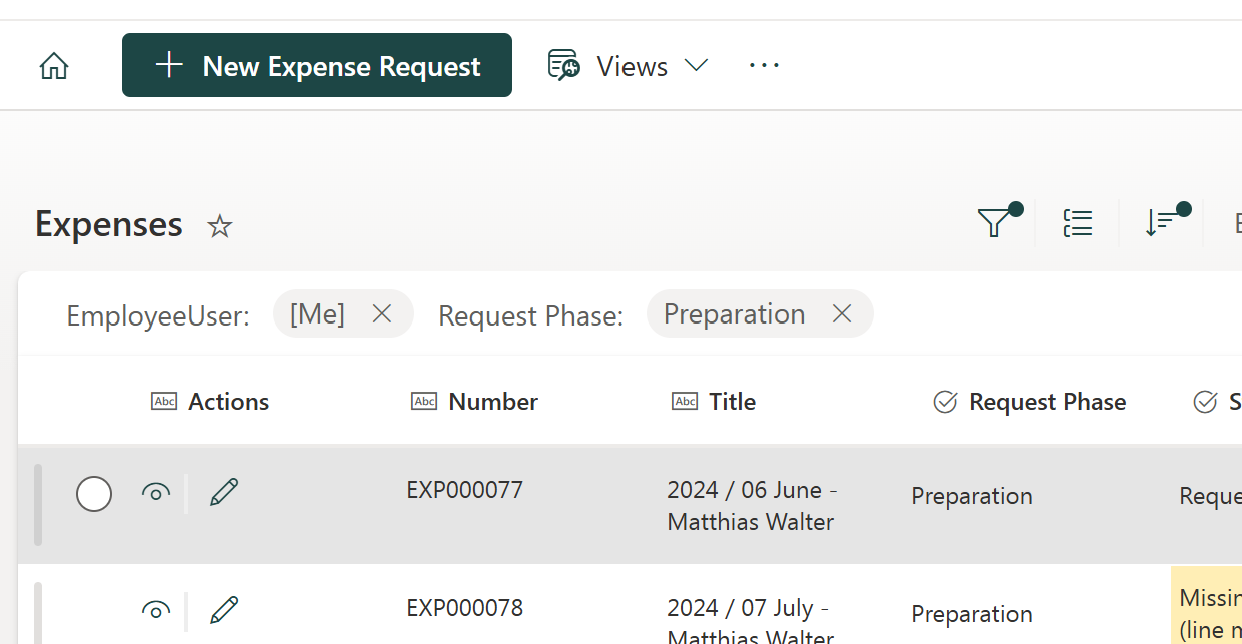 1
1 -

View Formatting - Extensive Options Command Bar style
Download the json file from here: SampleCollection/SP-List-View-and-Column-Formatting-Samples/view-commandbar-formatting-samples/commandbar-extensive-options-style at main · skybow/SampleCollection (github.com)Select the view you would like to change in the upper right corner on the list -> Format current view and switch to the Advanced Mode. Copy the JSON into the textbox, switch on option you want to show and press Save.Result
A clean command bar, with just the new button, the alerts in the overflow section and the additional button Home added as skybow List action.Plus now the actions you choose to display on purpose - in this case the "Export to Excel" Maintab with only "Export to Excel" as Subtab. For an even more extensive list of tab options please check out this post from Microsoft.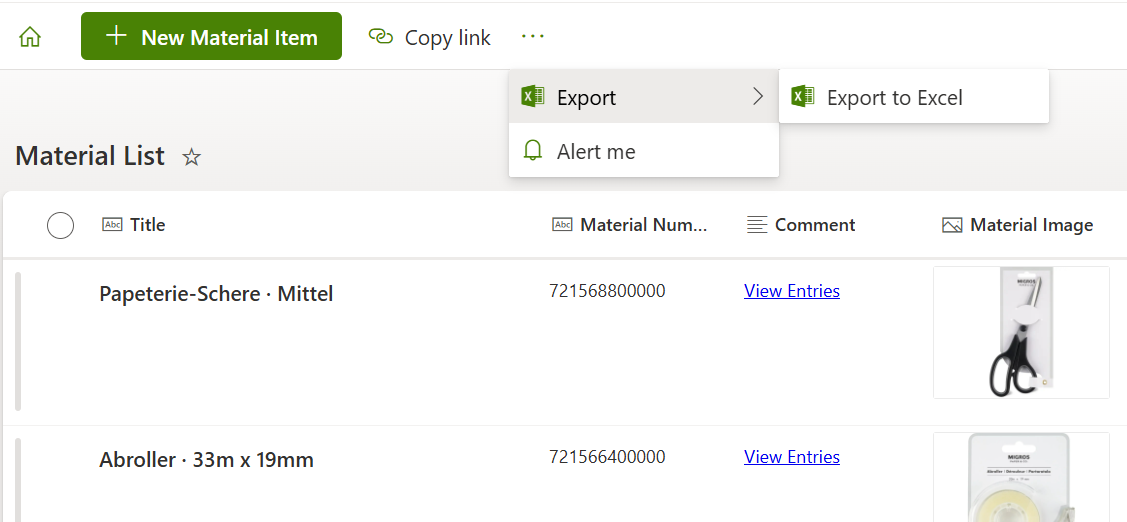 0
0
Please sign in to leave a comment.
Comments
7 comments